MCP
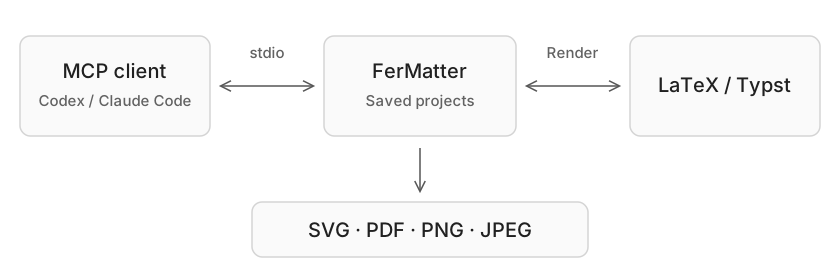
MCP and CLI are available on macOS and Linux. On Windows, use the desktop interface.
Open the project in FerMatter and configure its compiler tools before connecting your local agent.
Connect through MCP
Use local stdio, with a 300-second tool timeout. Adjust the app path if installed elsewhere.
Codex
Add to ~/.codex/config.toml:
[mcp_servers.fermatter]command = "/Applications/FerMatter.app/Contents/MacOS/FerMatter"args = ["mcp"]tool_timeout_sec = 300Claude Code
claude mcp add --transport stdio fermatter -- /Applications/FerMatter.app/Contents/MacOS/FerMatter mcpCheck the connection
Ask your connected agent: “List the projects available through FerMatter MCP.” The result should include the projects registered in FerMatter. If a project is missing, open it in the app and try again.
Available operations
| Task | Ask the agent to… |
|---|---|
| Find source material | List registered projects or templates; search and read Library equations |
| Produce images | Render supplied source or export saved equations |
| Keep a slide-specific edit | Add a Library variant |
| Review exported artwork | Reopen a FerMatter SVG in the app |
For example: “Find the least-squares equations in demo-paper and export them as SVG at 30 pt into /tmp.” Check that the returned SVG files exist in the output folder.
Files and permissions
- MCP reads saved project files and Library content; save Source edits before rendering or exporting through an agent.
- Export folders must already exist outside project source folders.
- Adding a variant keeps the original card and manuscript unchanged. MCP cannot edit manuscript files, delete projects or change settings.